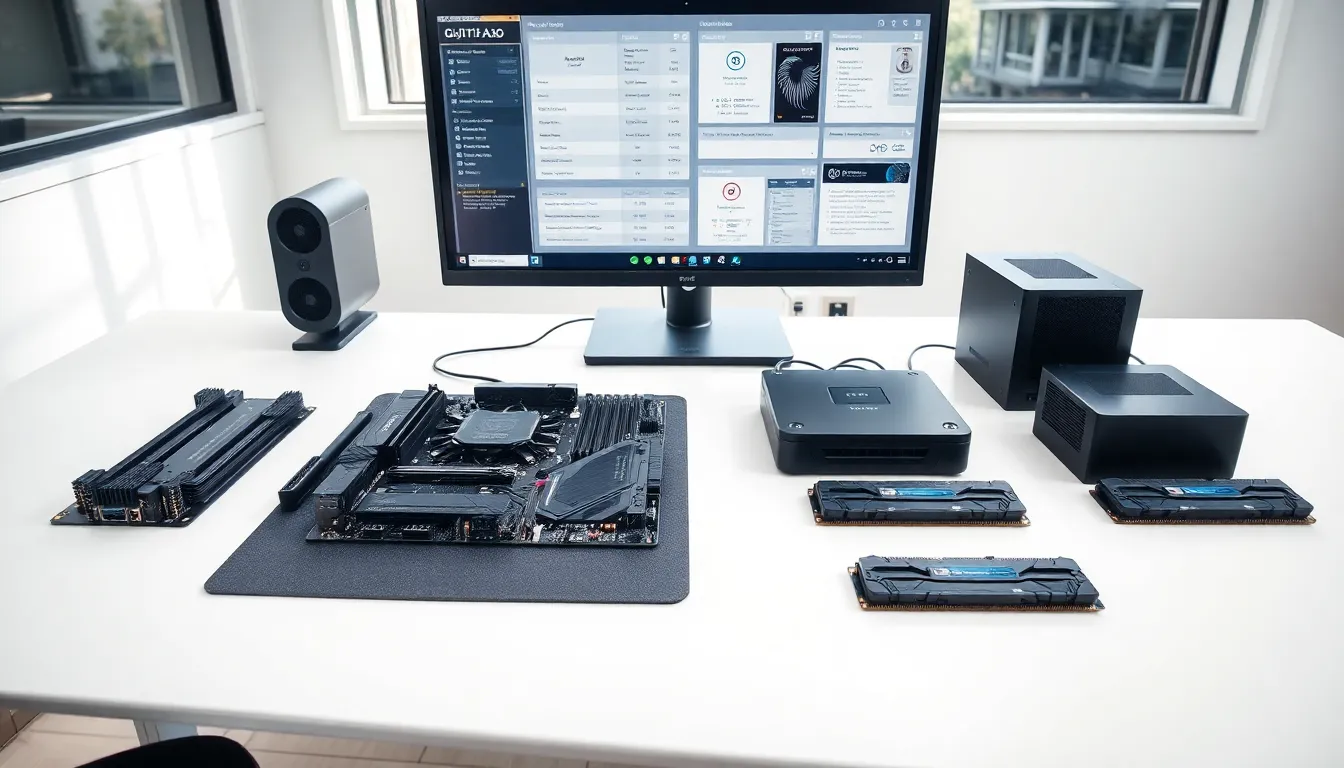

A hardware guide serves as the foundation for anyone building or upgrading a computer. Whether assembling a first PC or replacing aging parts, understanding each component’s role makes the difference between a smooth build and a frustrating one. This hardware guide breaks down essential components, from processors to power supplies, so readers can make informed decisions. The goal is simple: help builders choose parts that work well together and deliver the performance they need.
Table of Contents
ToggleKey Takeaways
- A good hardware guide helps you understand how CPUs, motherboards, RAM, storage, and GPUs work together for a successful PC build.
- Always match your CPU socket type (Intel LGA or AMD AM) to your motherboard to ensure compatibility.
- 16GB of RAM handles most tasks, but video editing and 3D rendering benefit from 32GB or more.
- Prioritize NVMe SSD storage over HDDs for faster boot times and better everyday performance.
- Calculate your total power needs and choose a PSU with 20-30% headroom for efficiency and future upgrades.
- Use tools like PCPartPicker to catch compatibility issues and compare prices before purchasing components.
Understanding Core Hardware Components
Every computer relies on a set of core components working together. This hardware guide starts with the two most critical pieces: the CPU and motherboard.
CPU and Motherboard Basics
The CPU (Central Processing Unit) acts as the brain of the computer. It processes instructions and handles calculations for everything from opening applications to rendering video. Modern CPUs come from two main manufacturers: Intel and AMD. Intel’s Core series and AMD’s Ryzen lineup dominate the consumer market.
When selecting a CPU, consider core count, clock speed, and intended use. A four-core processor handles everyday tasks well. Gaming and content creation benefit from six or more cores. Clock speed, measured in GHz, indicates how fast each core processes data.
The motherboard connects all components and determines upgrade paths. It must match the CPU’s socket type. Intel CPUs use LGA sockets (like LGA 1700), while AMD uses AM4 or AM5 sockets. The motherboard’s chipset also matters, it controls features like USB ports, PCIe lanes, and overclocking support.
Form factor affects case compatibility. ATX boards offer the most expansion slots. Micro-ATX saves space while retaining key features. Mini-ITX suits compact builds but limits expansion options.
Memory and Storage Options
RAM (Random Access Memory) stores data the CPU needs quick access to. More RAM allows smoother multitasking. For general use, 16GB works well. Video editing, 3D rendering, and heavy multitasking benefit from 32GB or more.
RAM speed and generation matter too. DDR5 offers faster speeds than DDR4 but requires a compatible motherboard. Most users find DDR4-3200 or DDR4-3600 provides excellent value.
Storage comes in two main types: SSDs and HDDs. Solid-state drives (SSDs) load programs and boot systems much faster than traditional hard disk drives (HDDs). NVMe SSDs connect directly to the motherboard via M.2 slots and deliver the fastest read/write speeds. SATA SSDs cost less but run slower.
A common setup pairs a 500GB or 1TB NVMe SSD for the operating system and frequently used programs with a larger HDD for file storage. This hardware guide recommends prioritizing SSD storage for the best everyday experience.
Choosing the Right Graphics Card
The graphics card (GPU) handles visual processing. It renders images, video, and 3D graphics. Gamers, video editors, and 3D artists need dedicated GPUs. Users who stick to web browsing, office work, and media playback can often rely on integrated graphics built into many CPUs.
NVIDIA and AMD produce most consumer graphics cards. NVIDIA’s GeForce RTX series competes with AMD’s Radeon RX lineup. Both offer options at various price points.
When choosing a GPU, match it to the intended use. A mid-range card like the RTX 4060 or RX 7600 handles 1080p gaming at high settings. For 1440p or 4K gaming, step up to cards like the RTX 4070 or RX 7800 XT.
VRAM (video memory) matters for high-resolution textures and displays. Cards with 8GB VRAM suit most 1080p and 1440p needs. Higher resolutions and professional work benefit from 12GB or more.
Physical size deserves attention. High-end GPUs often span two or three expansion slots and measure over 300mm long. Check case clearance before purchasing. Power requirements also increase with performance, budget GPUs might need 150W while flagship cards demand 300W or more.
Power Supply and Cooling Considerations
The power supply unit (PSU) converts AC power from the wall into DC power for components. Choosing the right PSU prevents crashes, protects hardware, and supports future upgrades.
Calculate total system power draw first. Add the TDP (Thermal Design Power) of the CPU and GPU, then include roughly 100W for other components. A system with a 125W CPU and 200W GPU needs at least a 500W PSU. This hardware guide suggests adding 20-30% headroom for efficiency and future upgrades.
80 Plus ratings indicate efficiency levels. Higher ratings (Bronze, Gold, Platinum, Titanium) waste less electricity as heat. Gold-rated units offer a good balance of efficiency and cost. Modular PSUs let builders use only the cables they need, improving airflow and cable management.
Cooling keeps temperatures safe and extends component life. CPUs ship with stock coolers that handle basic use. Aftermarket air coolers and AIO (all-in-one) liquid coolers deliver better thermal performance and quieter operation.
Case airflow matters as much as individual coolers. Front intake fans pull cool air in. Rear and top exhaust fans push hot air out. Positive air pressure (more intake than exhaust) reduces dust buildup. Most mid-tower cases support at least three 120mm fans.
Tips for Selecting Compatible Hardware
Compatibility errors cause headaches and wasted money. Following a few guidelines prevents most issues.
First, verify CPU and motherboard socket compatibility. An Intel 13th-gen CPU requires an LGA 1700 motherboard. An AMD Ryzen 7000 series needs an AM5 board. Socket mismatches mean the CPU won’t physically fit.
Second, check RAM compatibility. DDR4 motherboards only accept DDR4 memory. DDR5 boards require DDR5. The slots have different notch positions, so mixing generations is physically impossible.
Third, confirm case dimensions. Measure GPU length, CPU cooler height, and PSU clearance. Many case manufacturers list maximum supported dimensions in their specifications.
Fourth, ensure adequate PSU wattage and correct connectors. Modern GPUs need 6-pin, 8-pin, or 12VHPWR power connectors. Verify the PSU includes the right cables.
Fifth, use online tools like PCPartPicker. These sites flag compatibility issues automatically and compare prices across retailers. They save time and catch mistakes.
This hardware guide emphasizes research before purchasing. Reading reviews, checking specifications, and planning the build prevents returns and frustration.